Your data is saved in the cloud while you are signed in.
If entries are missing, or you got a new phone, here's how to get everything back.
On a new phone
- Install Doggy Time and open it.
- Tap the gear icon on the main screen, then tap Sign In.
- Sign in the same way you did the first time:
- Sign in with Apple (iPhone and iPad only),
- Sign in with Google, or
- your name and the same email, then the 6-digit code we email you.
- Wait a moment while your data downloads.
If you signed in a different way before, you may be in a second, empty account.
See Accessing Your Original Account: Correcting Your Sign-In Method.
Re-sync all your data
Use this when some of your entries are missing.
- Tap the gear icon on the main screen.
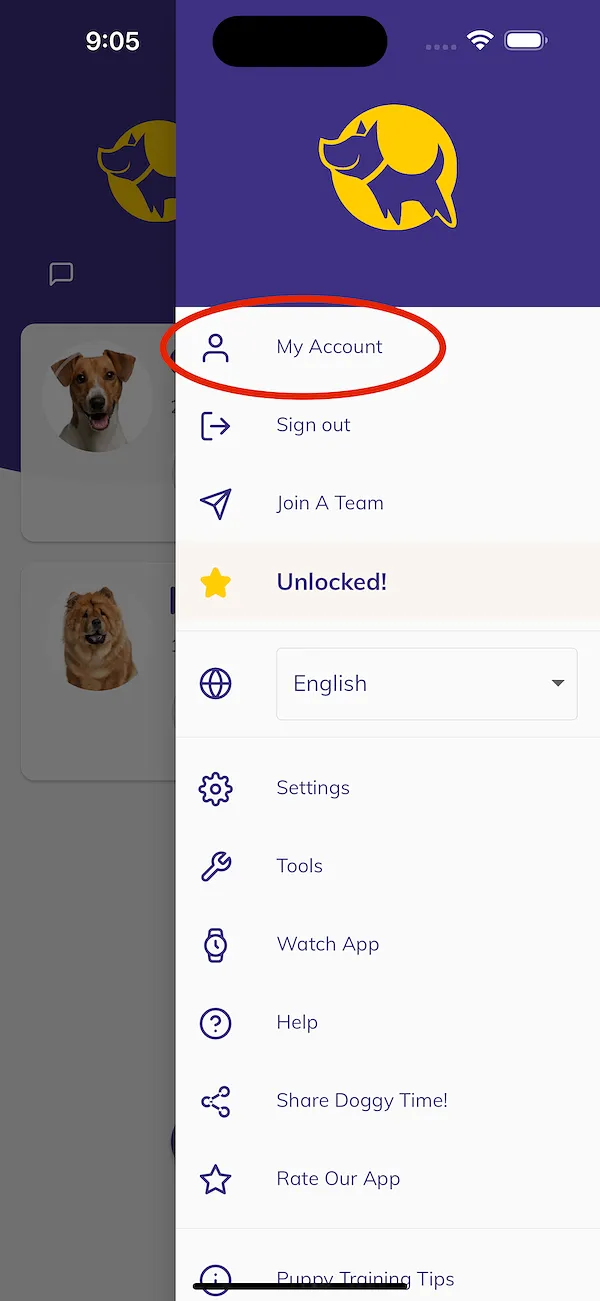
- Tap My Account.
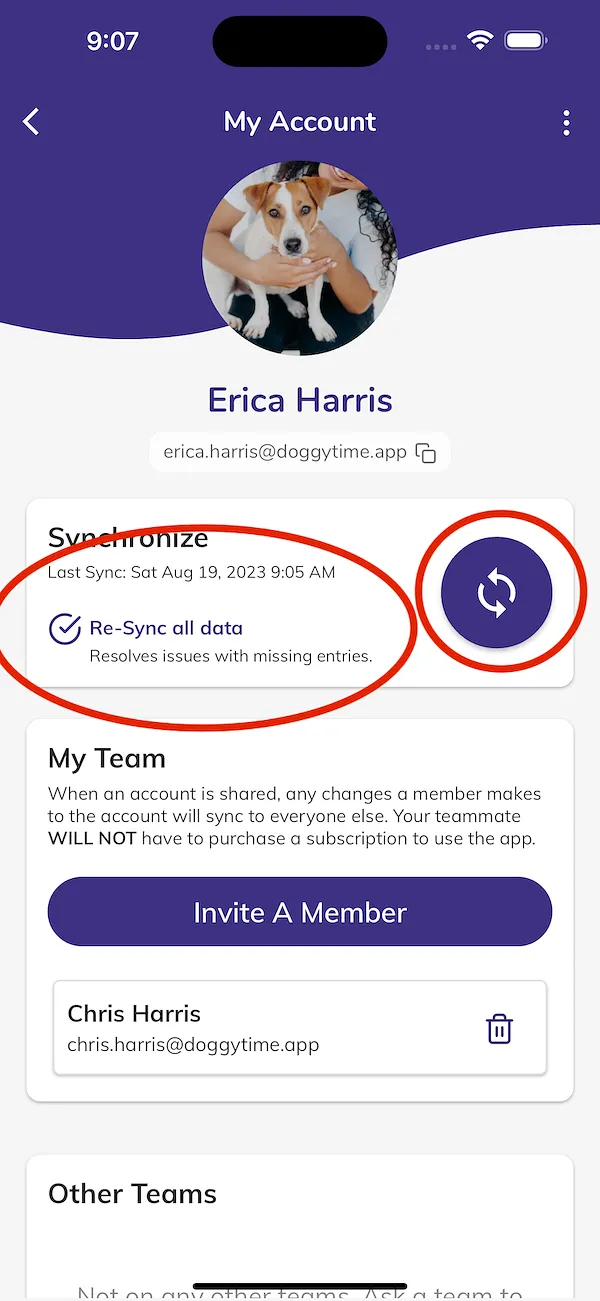
- Scroll down to Synchronize.
- Tick Re-Sync all data.
- Tap the round sync button next to it.
- Keep the app open until Last Sync: shows the current time.
Photos and videos are missing
If Sync Media Only On Wi-Fi is on, photos and videos only upload and download on Wi-Fi.
To check, tap the gear icon, then Settings.
Connect to Wi-Fi, or turn the setting off.
Troubleshooting