Sign in with Apple is available on iPhone and iPad only. On an Android phone or tablet, see On Android below.
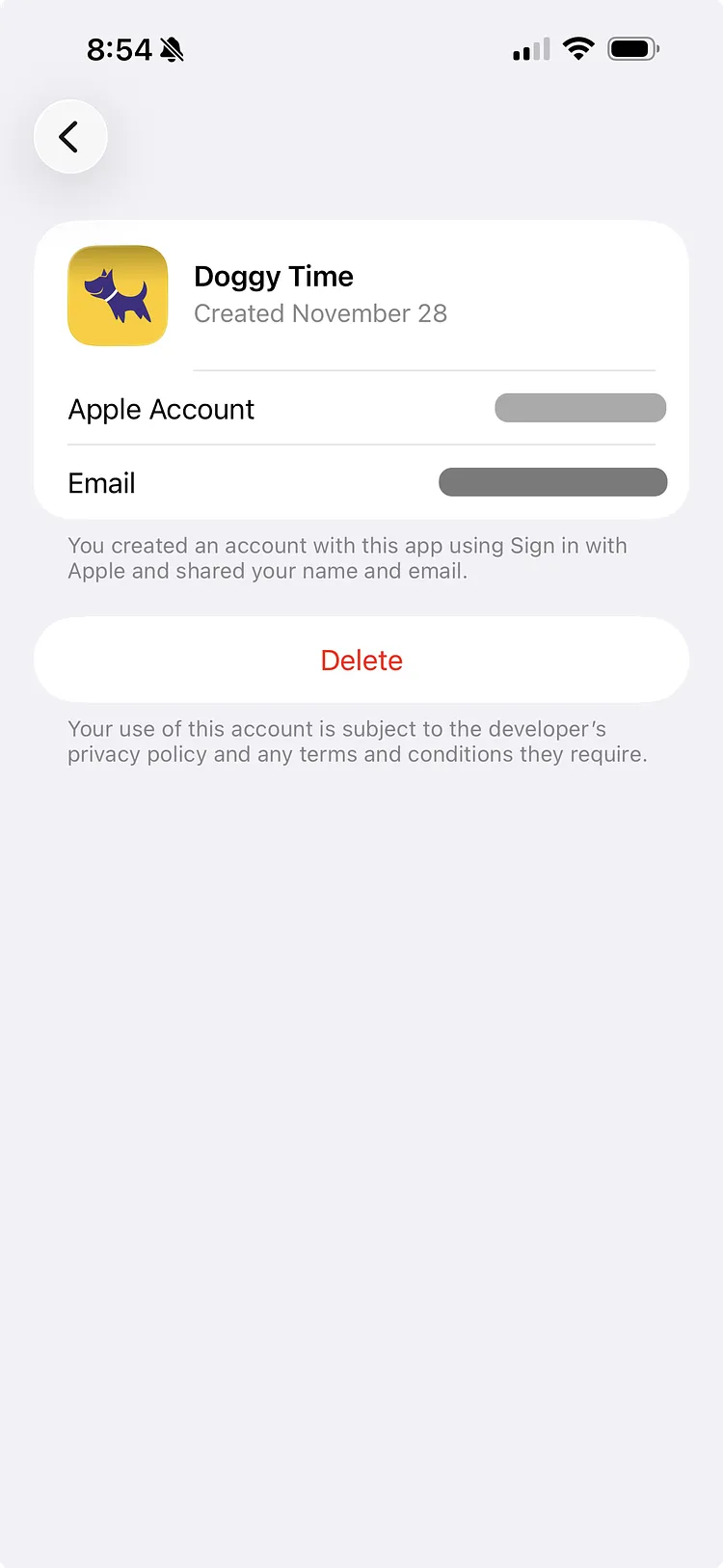
If signing in with Apple doesn't work, disconnect Doggy Time from Sign in with Apple and try again. This does not delete your data from Doggy Time.
If you created your account with Sign in with Apple, the surest way back into it is to sign in with Apple again, on an iPhone or iPad.
Doggy Time on Android has no Sign in with Apple button. On Android, sign in with the email address your Apple ID shared with Doggy Time, and you will be back in the same account, with your data and subscription:
If that email is a Gmail address, you can also tap Sign in with Google and choose it.
If you chose Hide My Email when you first signed in with Apple, your account uses an address Apple made up for Doggy Time, ending in @privaterelay.appleid.com, not your own email. Signing in with your own email creates a new, empty account.
If you signed in another way and don't see your data, see Accessing Your Original Account: Correcting Your Sign-In Method.